
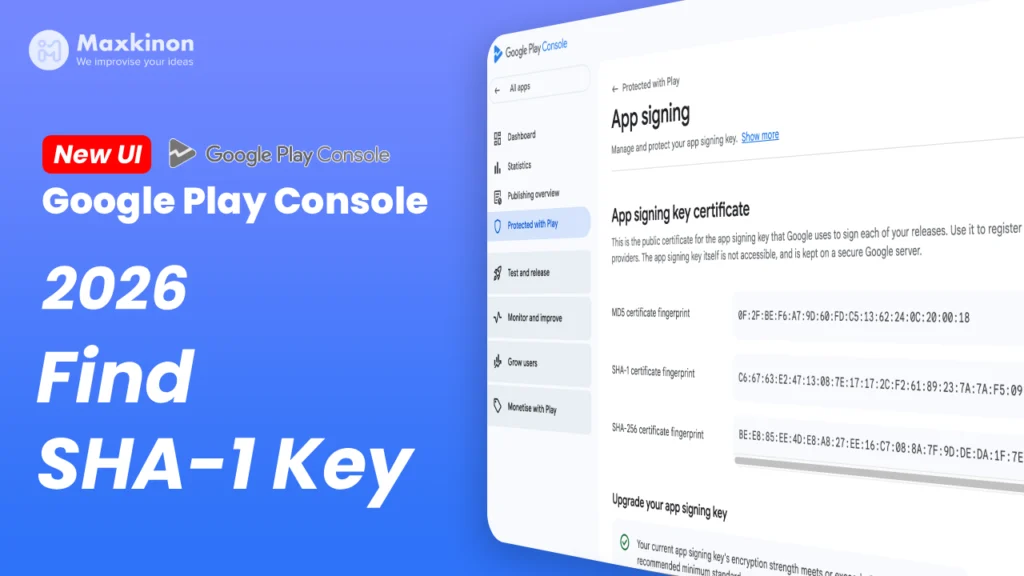
If you have ever launched an Android app, you have probably been there: your app compiles flawlessly on your local machine, and social logins function perfectly during testing, but the moment you upload your package to Google Play and download it, your Google Sign-In or maps integration completely breaks.
This silent failure happens because Google Play manages your app signature. To fix this, you need your release SHA-1 certificate fingerprint. However, if you are searching the dashboard in 2026, you will quickly notice that the classic menus have been updated.
In this comprehensive guide, we will walk you through exactly how to find your SHA-1 key in the new Google Play Console layout. We will also cover why this process is essential and how you can avoid common configuration pitfalls that stall your mobile app launch.
Why Do You Need the SHA-1 Fingerprint?
Every Android app must be digitally signed with a certificate. This signature works as a security handshake between your application and third-party API providers like Google, Firebase, or Facebook. When your app attempts to complete an action, such as logging in a user, the API provider verifies that the request comes from an authorized build by matching the package name and your certificate fingerprint.
Generally, you will use two different certificates during the lifecycle of your application:
- Debug and Upload Key: Used when testing locally. If you need to manage this fingerprint, you can read our guide on how to delete a debug key and regenerate a new one for android development.
- App Signing Key: Google Play re-signs your app with this secure key before delivering it to your users. Since this is the signature their devices actually run, this is the SHA-1 that services like Firebase and OAuth must recognize.
If your login feature works on a local build but fails in your production release, it is because you registered the upload key fingerprint instead of the Google-managed app signing key fingerprint in your backend settings.
Where to Find the SHA-1 Key in the New 2026 Google Play Console
Google has consolidated its security, integrity, and delivery tools. The older Release, Setup, and then App Integrity navigation paths have been replaced. The credentials now live under a unified security hub.
Here is the exact step-by-step path to locate your SHA-1 key:
Step 1: Open Google Play Console and Choose Your App
Sign in to your Google Play Console developer account. Ensure you have administrator or owner credentials, as read-only or restricted accounts may not have visibility over signing certificates. Select your app from the dashboard list.
Step 2: Go to the “Protected with Play” Section
Look at the left sidebar menu. Instead of browsing through the release configurations, scroll down to the security segment and click on Protected with Play. This dashboard centralizes all defenses regarding your application.
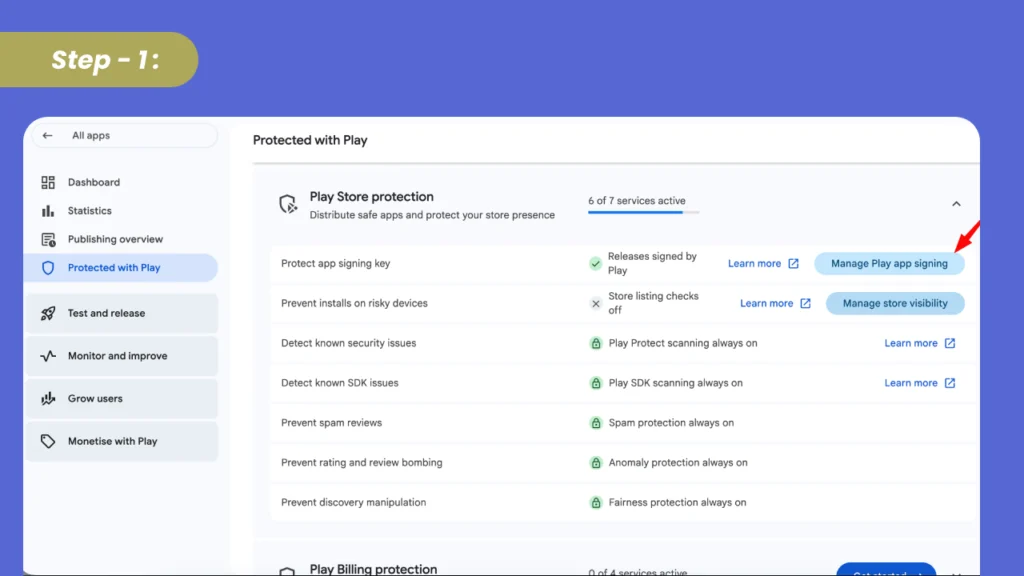
Step 3: Access “Play Store Protection” and Select “Manage”
Inside the Protected with Play page, you will see sections dedicated to security. Look for the Play Store protection option. Click on the action button or link labeled Manage Play app signing (or the small arrow indicator next to Play Store protection) to open your credential page.
Step 4: Copy the SHA-1 and SHA-256 Keys
You are now inside the official key management screen. Here, the layout displays certificates clearly divided between:
- App signing key certificate: This is the critical production key managed by Google.
- Upload key certificate: This is the public key tied to the upload key you used to sign your AAB file before uploading.
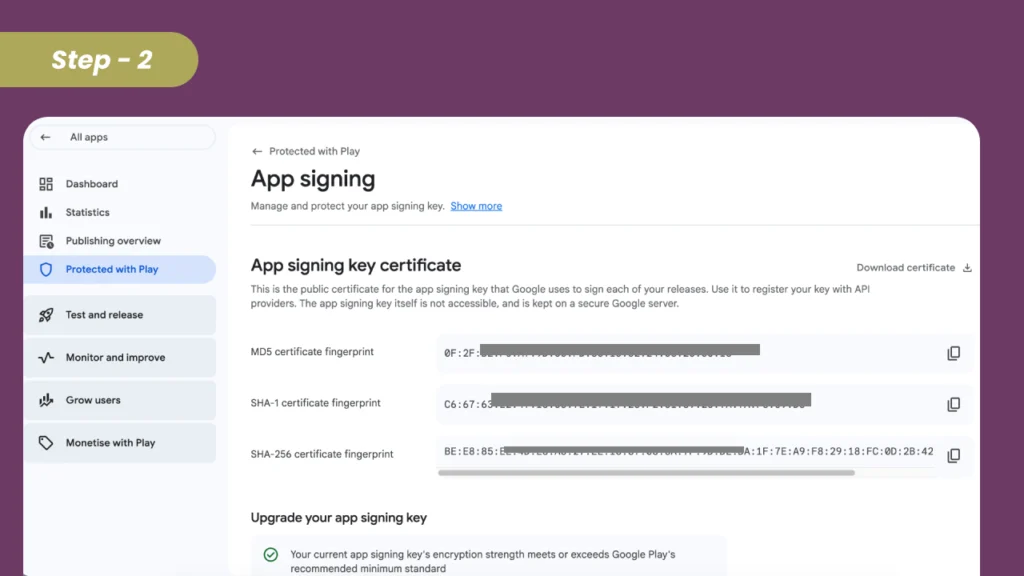
To fix connection errors with Firebase or social sign-in, locate the App signing key certificate block. Under it, find the row marked SHA-1 certificate fingerprint and click the copy icon. If your provider requires modern hashing, copy the SHA-256 certificate fingerprint as well.
What to Do with Your SHA-1 Fingerprint
Once you have successfully copied the fingerprint from the Play Console, you need to register it with your API providers:
- For Firebase Integration: In your Firebase Console, click the gear icon to open Project Settings. Select your Android app under the list, click Add fingerprint, and paste your SHA-1 key. Download the updated configurations file and place it inside your app directory.
- For Google Cloud Console (OAuth): Go to your Google Cloud Project under APIs and Services, find your Credentials, and edit your Android OAuth 2.0 Client ID. Ensure the SHA-1 listed there matches the production key from the Play Console.
Remember that if you are readying your project for the Play Store, you must also navigate other platform rules. For instance, testing requirements now require a structured 20 tester service to pass Google’s closed-beta phase. Ensuring your setup is clean prevents unexpected holdups. You can also read our tips to avoid google play console termination tips and strategies to keep your account safe and your credentials compliant.
Saving Time with Budget-Friendly Outsourced IT Services
For many startups and content creators, navigating this technical process can feel overwhelming. If you are launching an online store or a SaaS product, you might have invested in a Codecanyon script setup. These scripts usually require a precise Laravel development stack on the backend and Flutter app development on the front-end to build the mobile packages. When performing a quick app reskin, managing API integrations, push notifications, and social logins becomes much easier once you understand the signing mechanism. If you find yourself stuck, hiring a dedicated bug fixing service is an easy way to save time and prevent launch delays.
Based in West Bengal, India, our team at Maxkinon provides high-quality, straightforward, and highly budget-friendly solutions. Unlike premium agencies that demand massive retainer contracts, we offer transparent billing starting from just $10 flat rates on our installation and re-skin service. We specialize in turning your concepts into fully functional products quickly, offering a wide array of services to grow your business.
Our core specialties include:
- Flutter App Development: Beautiful, native-performing cross-platform mobile apps.
- Mobile App Development & App Reskin: Got a concept or a pre-built template? Our packages provide fast-turnaround updates for ready-to-use bundles.
- Codecanyon Script Setup & Script Installation: Complete, worry-free setups for PHP, Laravel development, or Node scripts.
- WordPress Development: Tailor-made plugins, beautiful design, and expert, quick WordPress error and bugs fixing.
- SEO and Growth: If you want your web asset to grow organically, our customized search engine optimization service handles the heavy lifting.
We do not use complicated jargon or trap you in long delivery waits. We solve bugs swiftly, giving you free post-project support so you can focus on building your brand.
Why does my local build work perfectly but the Google Play build fails to log in?
Your local debug build uses a debug keystore generated on your computer. When you upload your app to Google Play, Google strips your upload signature and replaces it with their own managed App Signing Key. You must copy the production SHA-1 certificate from the Play Console and register it with Firebase or your API provider.
Can I use the same SHA-1 key for both Firebase and Google OAuth?
Yes. Firebase and the Google Cloud Console actually share credentials under the hood. When you add a SHA-1 key to your Firebase project settings, it automatically generates or updates the corresponding OAuth Client ID in your Google Cloud dashboard
What is the difference between SHA-1 and SHA-256?
Both are cryptographic fingerprint hashes used to verify identity. SHA-1 is a legacy format still required by many third-party tools, legacy Google APIs, and basic OAuth setups. SHA-256 is a more secure, modern hashing format required by Play Integrity, deep-linking verification, and modern SDKs.
How long does it take for a newly added SHA-1 key to work?
Once you paste your SHA-1 fingerprint into Firebase or the Google Cloud Console, it generally takes around 5 to 10 minutes to propagate across Google’s global servers. In very rare cases, it can take up to an hour.
Partner with Maxkinon for Quality, Affordable Web and App Setup
Why lose valuable days struggling with complex server settings, package configurations, or certificate errors? Let our experts turn your creative visions into fully operational web systems and mobile applications. We are committed to fueling your startup growth, helping you achieve your commercial dreams with highly cost-effective, premium execution.
Whether you are looking for a comprehensive mobile app development partner, an expert in Laravel development, or a reliable bug fixing service to patch unexpected errors, we have your back. Let us take care of the tech while you scale. Contact us today and kick off your next project with Maxkinon!





Be the first to leave a comment!